Capture
Learn how to use the Capture node in YourGPT Studio to collect user input including text responses, entities, and file attachments.
Capture
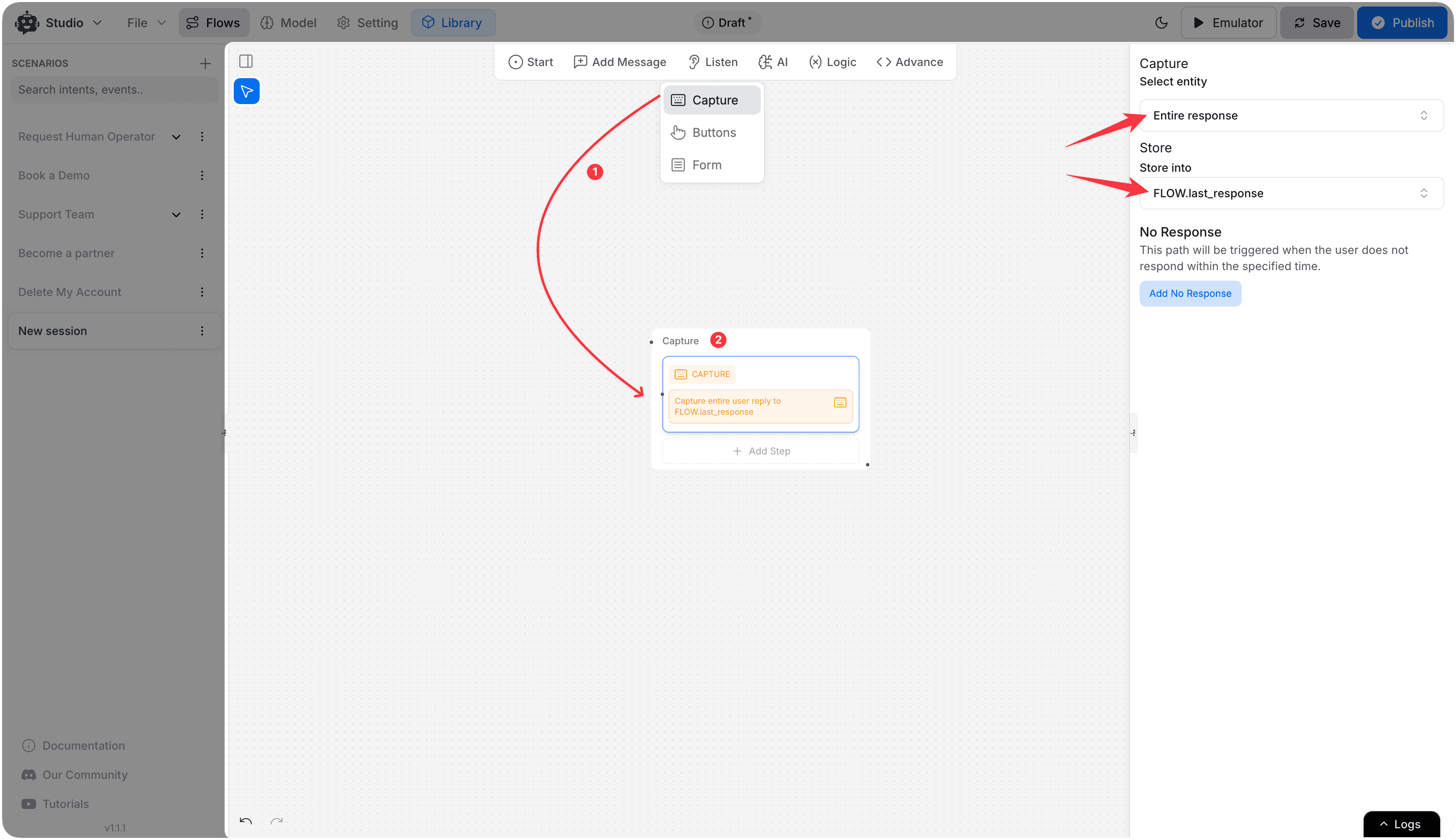
The Capture node collects user input during a conversation and stores it in a variable for later use in the flow. It supports three modes: capturing raw text responses (Query), extracting structured data from messages (Entity), and receiving file uploads (Attachment).
Capture Modes
1. Query Capture
Captures the user's raw text message and stores it in a variable.
| Sub-type | Description |
|---|---|
| Entire Response | Captures the full user message as-is |
| Name | Extracts the user's name from the response |
| Extracts and stores an email address | |
| Phone | Extracts and stores a phone number |
| Date | Captures a date value |
| Time | Captures a time value |
2. Entity Capture
Extracts structured information from prior conversation messages using AI-powered entity recognition. Set the Extract from History Count to control how many previous messages to analyze.
Use this mode when the information you need was already mentioned earlier in the conversation and you want to pull it out without asking the user again.
3. Attachment Capture
Prompts the user to upload a file. Supported attachment types:
| Type | Description |
|---|---|
| Image | PNG, JPG, GIF, and other image formats |
| Video | MP4 and other video formats |
| Audio | MP3, WAV, and other audio formats |
| File | Documents, PDFs, and general file uploads |
How to Use
- Drag the Capture node from the toolbar onto the canvas.
- Select a capture mode: Query, Entity, or Attachment.
- Choose the variable where the captured value will be stored.
- Configure the No Match path for when input doesn't meet expectations.
- Configure the No Response path for when the user doesn't reply within the timeout.
No Match & No Response Handling
| Path | When triggered |
|---|---|
| No Match | The user's input doesn't satisfy the capture criteria |
| No Response | The user doesn't respond within the configured timeout period |
Use Cases
- Collecting a user's name, email, or phone number during onboarding
- Capturing a support ticket description in free text
- Extracting order numbers or dates from conversation history
- Receiving uploaded documents or images for review
Note
Captured values are stored in Variables and can be referenced anywhere in the flow using the {{variableName}} syntax.
Listeners
Listeners play a crucial role in capturing user responses and enabling interactive elements like buttons within flow. These components facilitate user engagement and data capture for seamless interactions.
Buttons
Learn how to use the Buttons node in YourGPT Studio to present clickable choices to users and branch your chatbot flow.