Queue Replies
Learn how to setup Queue Replies in YourGPT Chatbot
The Queue Replies feature allows the chatbot to generate responses after processing messages that have been queued. This functionality is particularly beneficial in scenarios where users send multiple messages in quick succession, such as follow-up questions, expressions of gratitude, or fragmented queries. By compiling these messages into a single, comprehensive response, the chatbot can provide more coherent and contextually relevant replies.
Use Cases
- Fragmented Queries: Users may break down a complex question into several shorter messages.
- Follow-up Questions: Users might send a question and then immediately follow up with a "?" to emphasize urgency.
- Expressions of Gratitude: Users often say "thank you" followed by an emoji or another brief message.
How It Works
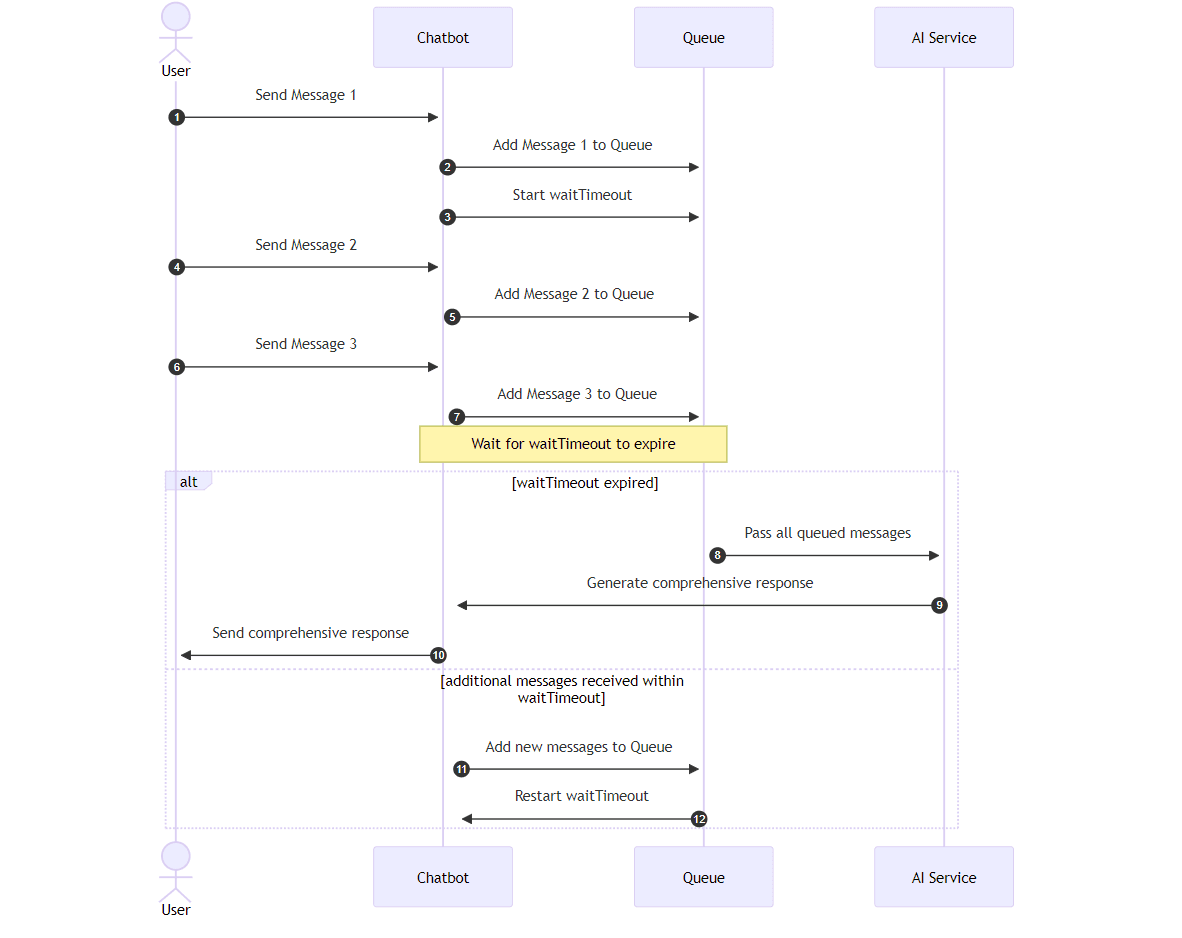
- Message Queueing: When users send messages to the chatbot, each message is added to a queue.
- Wait Timeout Setting: The queue operates with a specified waitTimeout setting, which determines how long the chatbot waits before responding. This waiting period allows for additional user messages to be queued.
- Response Generation: Once the waitTimeout period expires, the chatbot processes all queued messages and generates a single, comprehensive response. This response addresses all the messages in the queue, ensuring a coherent and contextually relevant reply.
Benefits
- Improved User Experience: By consolidating fragmented messages into a single response, the chatbot provides a more coherent and contextually relevant reply.
- Enhanced Conversational Flow: The chatbot can address multiple user messages in a single response, maintaining the conversational flow and reducing the misinterpretation.
- Efficient Communication: Queue replies streamline communication by processing multiple messages simultaneously, giving more human touch to the conversation.
How to Set Up Queue Replies
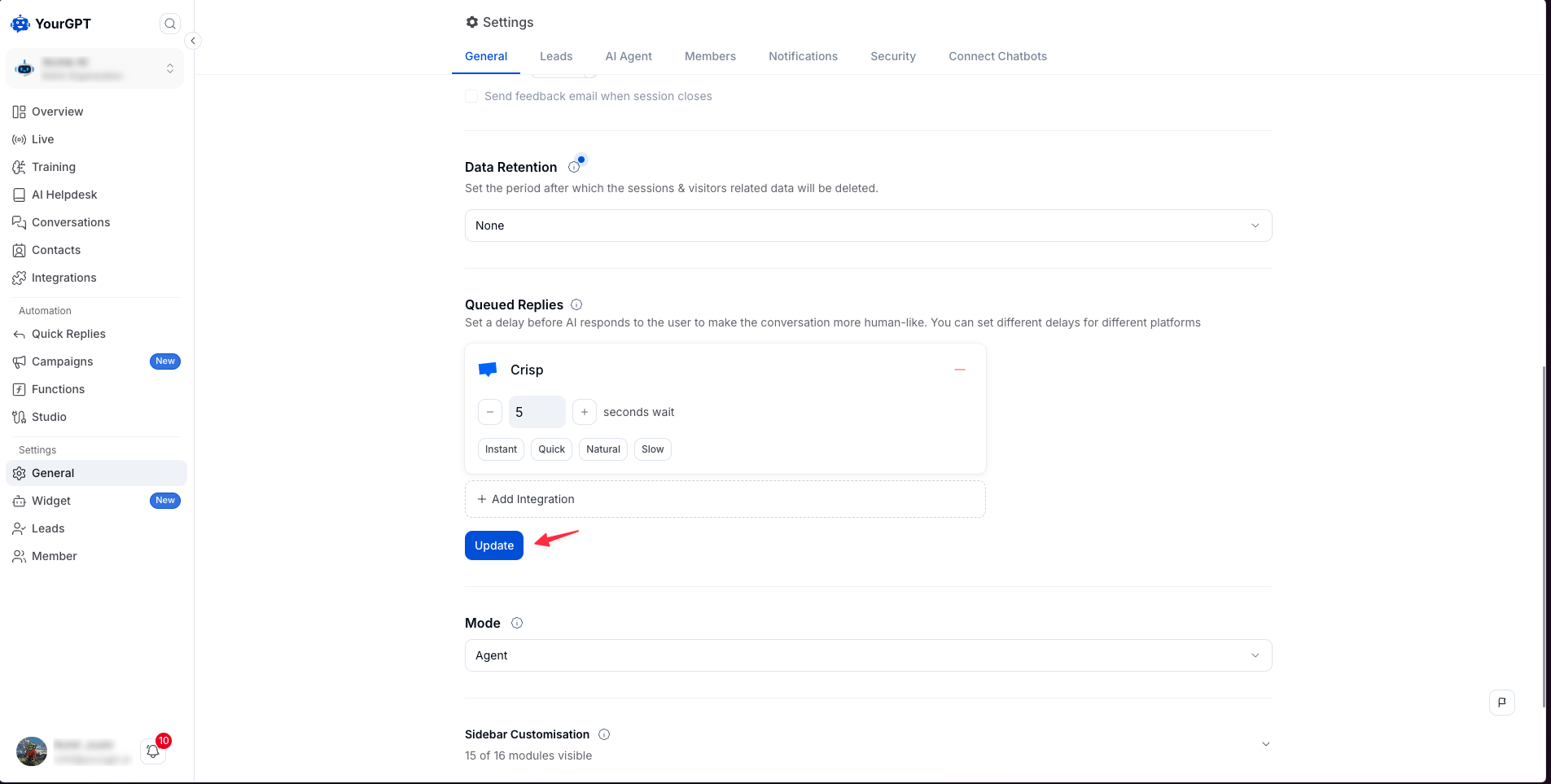
- Open General Settings: In the Chatbot Dashboard, go to Settings → General and scroll to the Queued Replies section.
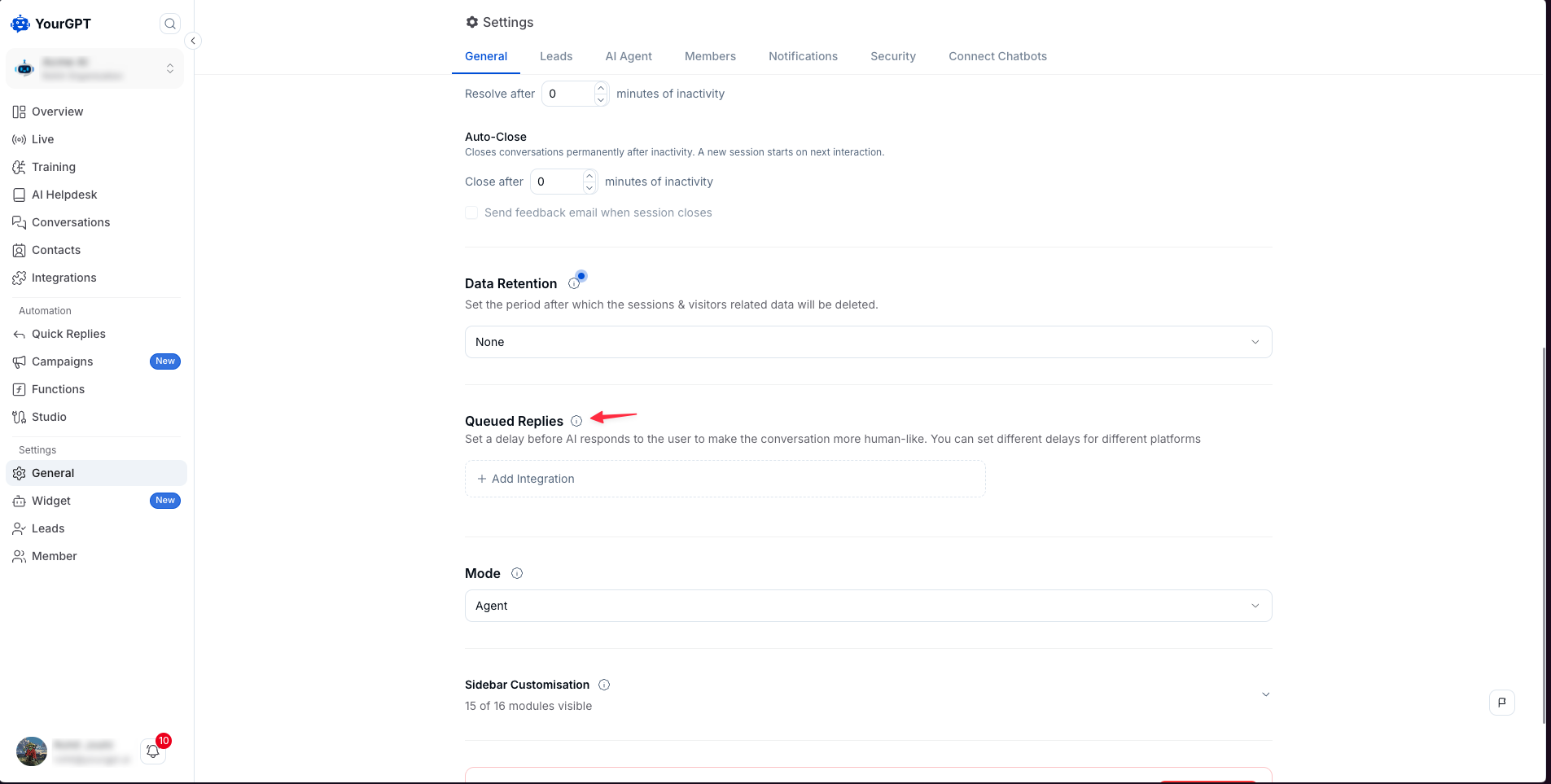
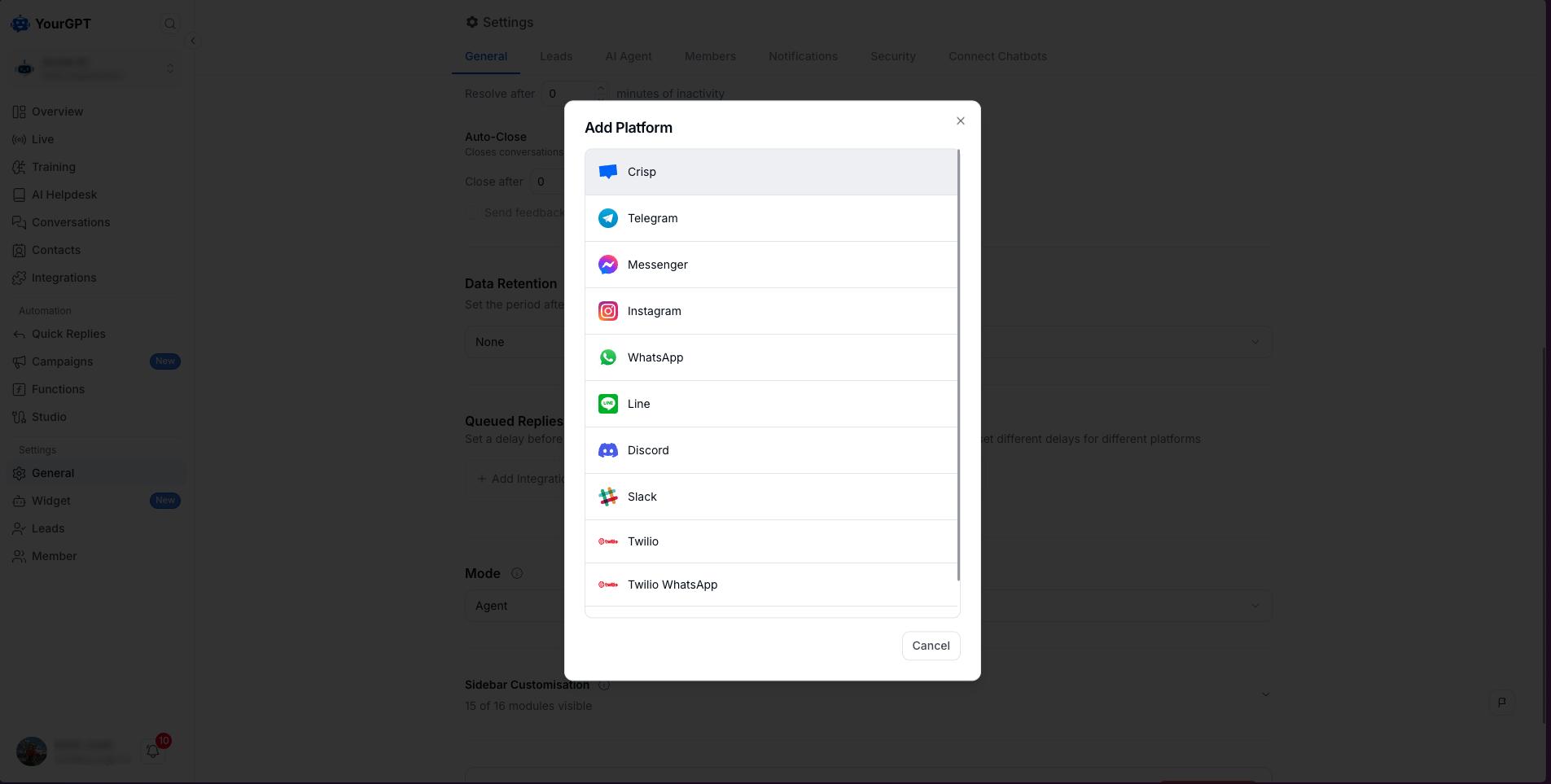
- Add a Platform: Click the + Add Integration button. A dialog will list all supported platforms — select the one you want to enable the delay for.
- Set the Response Delay: For each added platform a default delay of 10 seconds is added and changes are saved immediately.
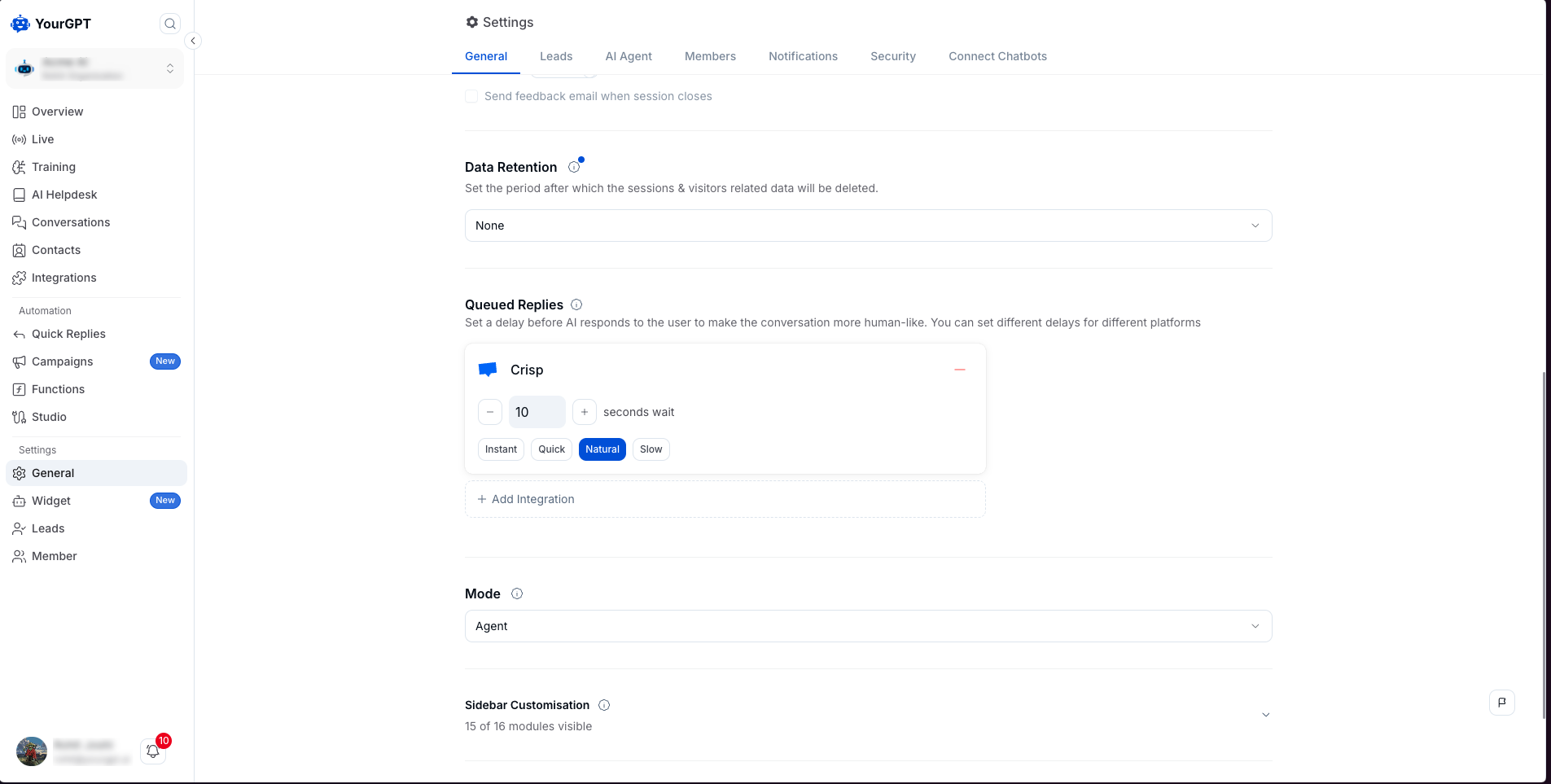
- Save Delay Changes: After adjusting the delay, an Update button appears. Click it to save the new timeout value.
Conclusion
Queue Replies are a valuable feature that enhances the chatbot's ability to handle multiple user messages effectively. By consolidating fragmented queries, follow-up questions, and expressions of gratitude into a single response, the chatbot provides a more coherent and contextually relevant reply. This feature improves the user experience, maintains conversational flow, and streamlines communication, making interactions with the chatbot more efficient and engaging.