Authentication
Generate and use an API Key to authenticate Project Integration API requests.
Every request to the Project Integration APIs requires an API Key in the api-key header. You generate this key from your project's integration settings.
Generating your API Key
- Go to your project's Integrations page and click Manage on API Integration
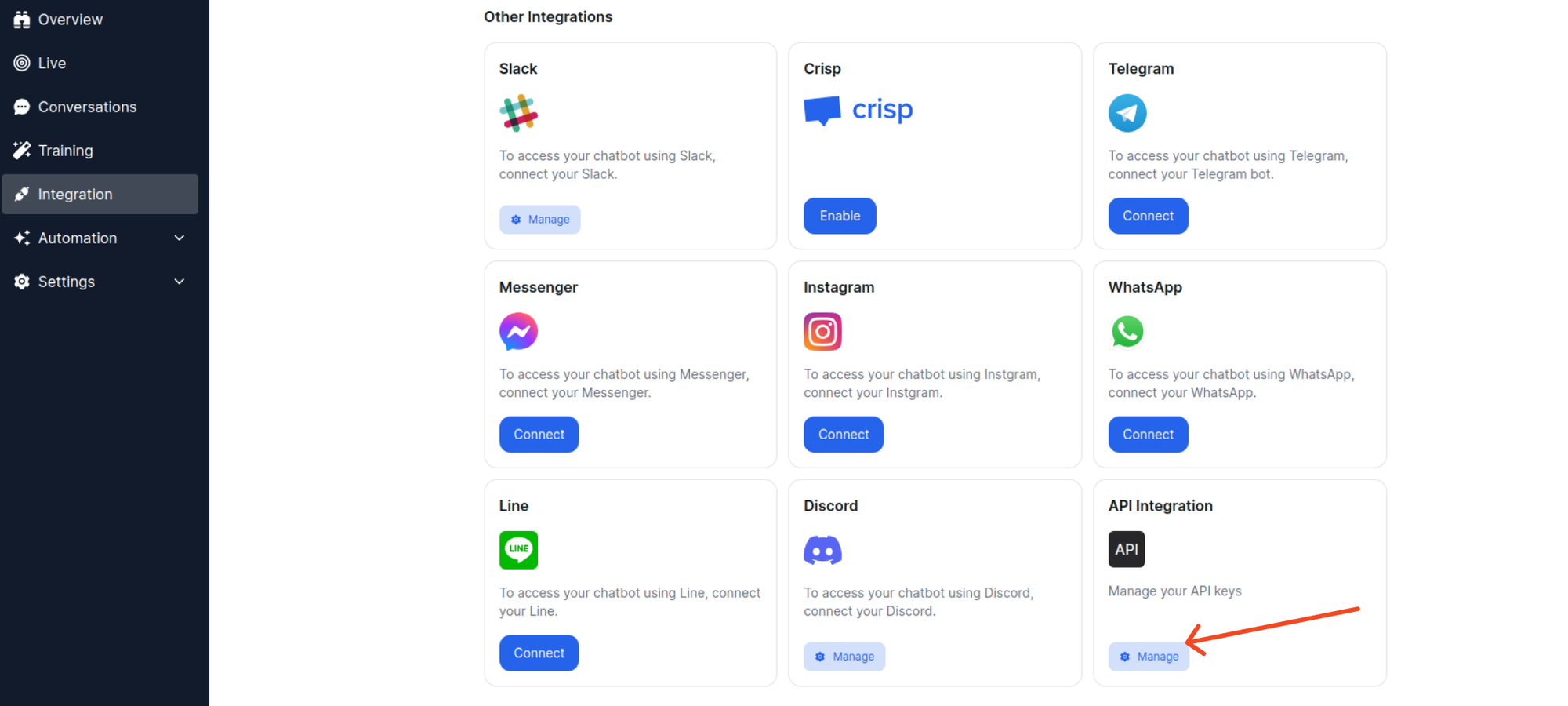
-
Click Generate API Key to create a new key
-
Copy your generated API key
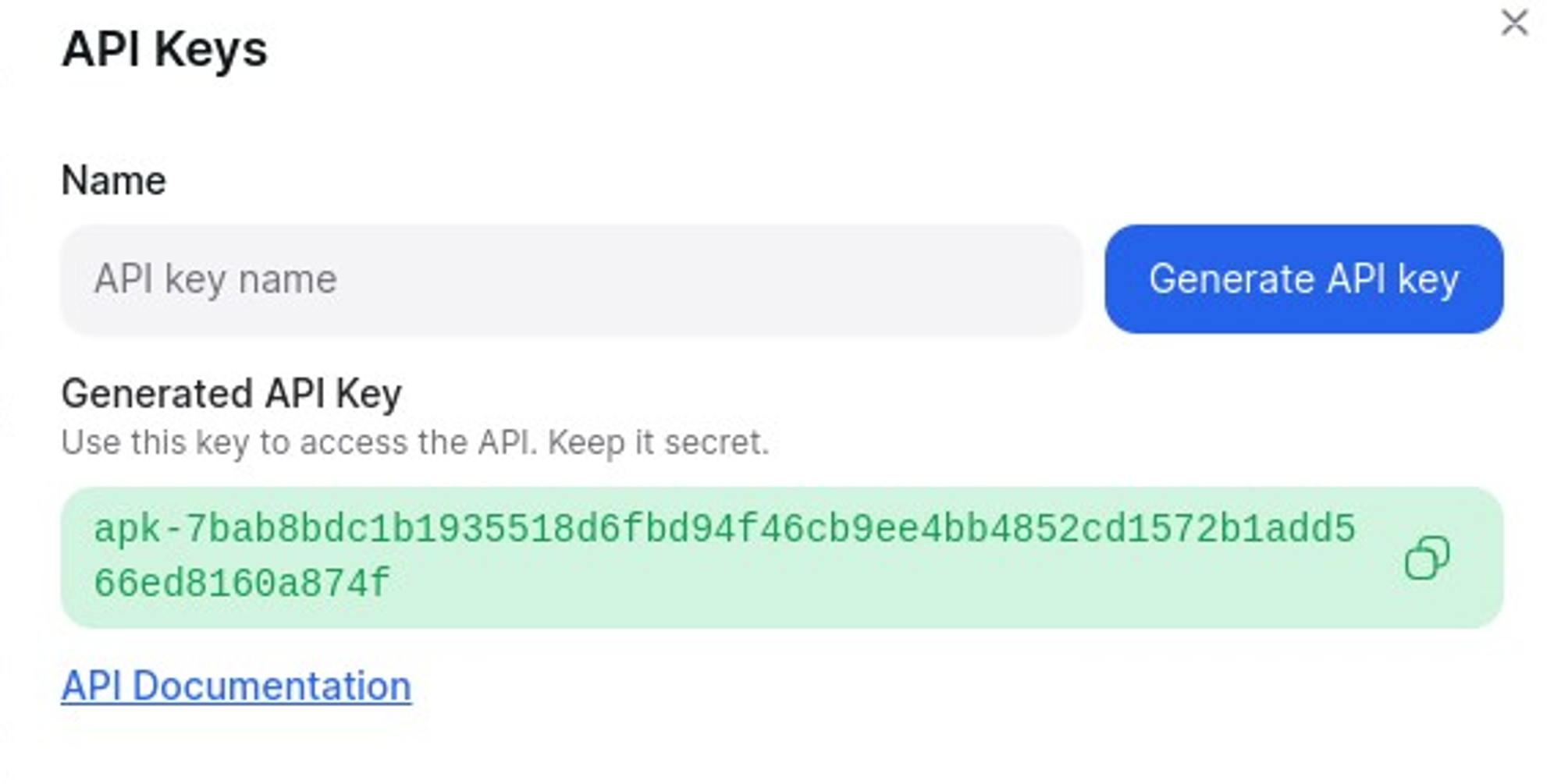
The widget_uid is your chatbot's Widget ID. You can find it on the same Integrations page.
Using your API Key
Pass the key in the api-key header on every request:
curl -X POST https://api.yourgpt.ai/chatbot/v1/createSession \
  -H "api-key: apk-your-api-key" \
  -H "Content-Type: application/json" \
  -d '{"widget_uid": "your-widget-uid"}'
All API keys use the apk- prefix:
apk-ca1b2c3d4e5f...Response format
All endpoints return a consistent JSON structure:
- Success: HTTP
200with"type": "RXSUCCESS" - Error: HTTP
400with"type": "RXERROR"
Error codes
| Status | Meaning |
|---|---|
400 | Bad request — missing or invalid parameters |
401 | Invalid or missing API key |
403 | API key does not have access to the requested resource |
Looking for Platform API authentication? See Platform API Authentication for API Token setup.